Add a Food
To add a food, tap on Add Food on the main screen. A new window appears where you can enter the name of the food and the nutrient values listed on the label.
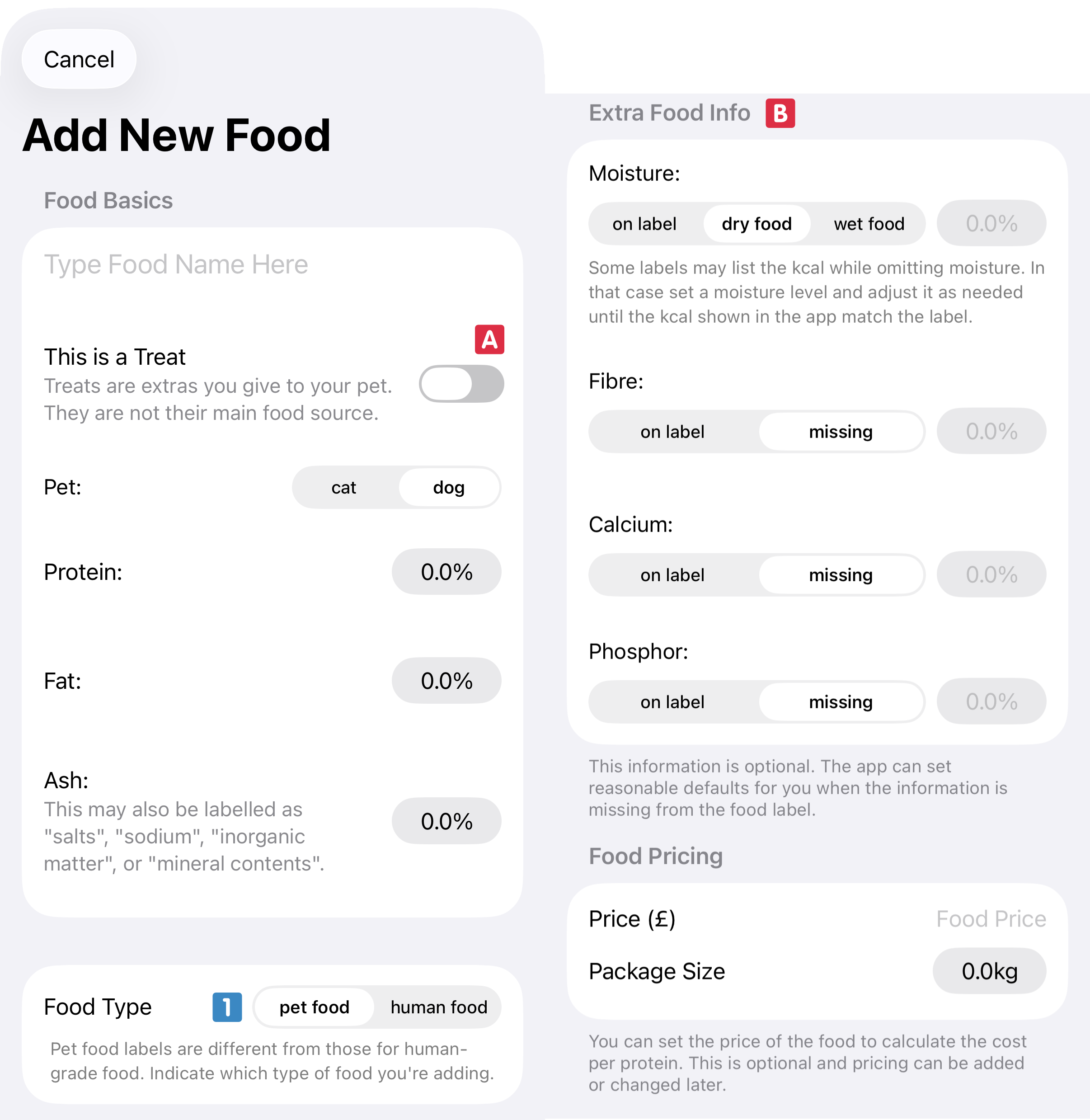
Enter the information as you see it on the (pet) food label. If you are adding a treat for your pet you must mark it as such
 . the app handles treats differently, and this becomes important when you want to create a food mix. All (pet) food labels should mention the protein, the fat, and the ash (salts/minerals) amount.
The additional information is optional for pet foods, and the fields you see depend on the type of food you are entering. The app fully supports both pet food and human food; all you have to do is select the correct type
 . Because the labels slightly differ the app adapts and shows different fields that you can fill in for
 . While these fields are optional, you should fill them in if they are listed on the packaging. Foods that use a default value often omit the information, but if the information is there it's usually there for a reason. If you selected a human food the options look different and some fields are mandatory.
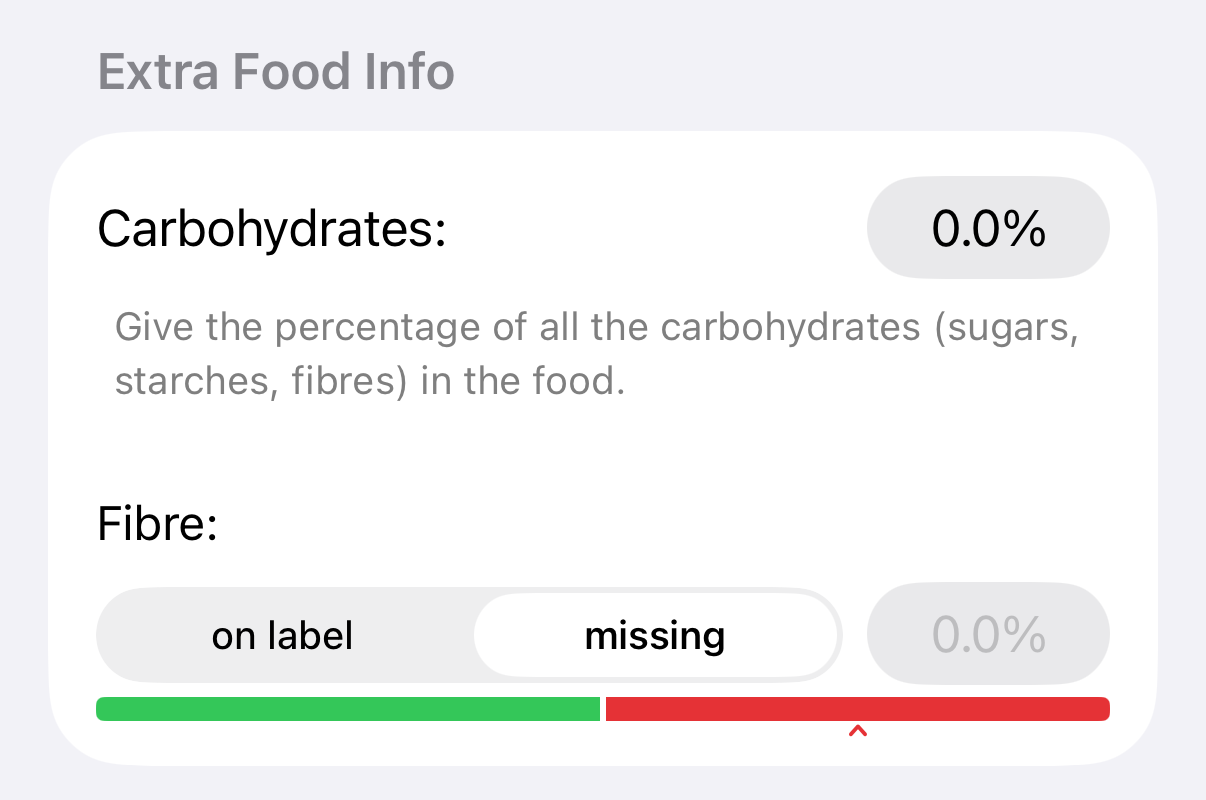
As you fill in the information the app immediately analyses the information. This is helpful to quickly spot good or bad foods, but also serves as a warning flag in case you enter a value incorrectly. If a value is shown as red do take a moment to verify that the value is correct.
If you want, you can specify the cost of food near the bottom too. This is useful for reference, and the app uses this when creating a food mix to minimise your costs.
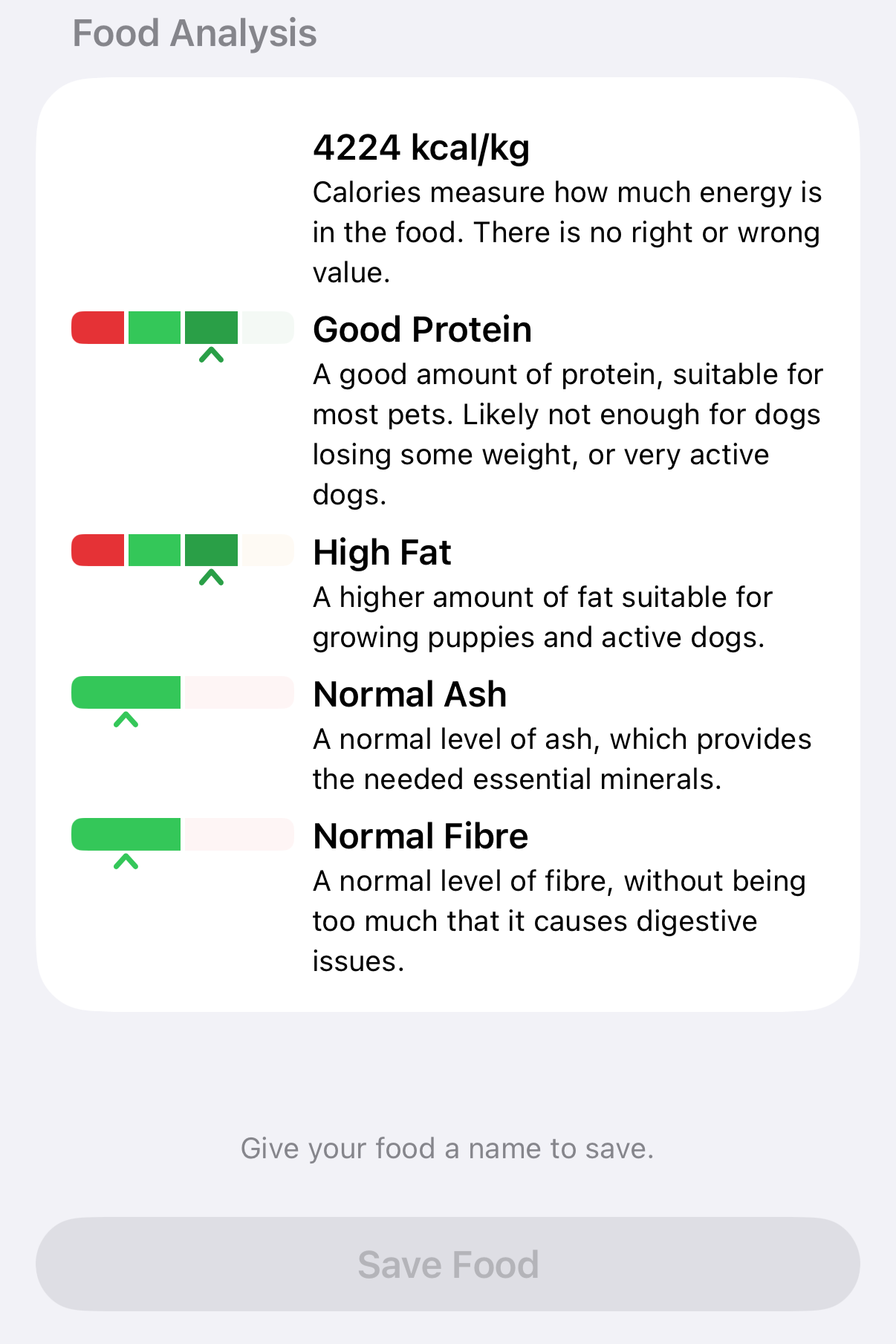
When you completed all the fields the app shows a food summary. Use this to verify the information, or get a quick idea of how the app rates the food. When you are satisfied (and once you completed all mandatory fields) you can save this food.