Accounts
Creating an account is optional. It comes as part of the subscription and an account allows you to sync your data across all your devices. However, the app cares deeply about your privacy. While all data on the servers is encrypted, you can still opt to keep all your data offline.
If you do not create an account then all your data is stored on your device only. Your data will be available when you are offline, regardless of whether you have created an account or not. However, if you do not create an account or do not log in then your data never touches the Smarthound servers. This means that you cannot sync data across your devices. It also means that, in case of loss or damage of your device, all your data is lost as the Smarthound servers do not have a backup. Not creating an account does provide you with the maximum level of privacy.
Creating an Account
To create an account, or to log in to your account, go to the Preferences screen. To do so, tap on the icon
 in the top right corner of the app.

At the top of the Settings screen you'll find the "Data Syncing" section.
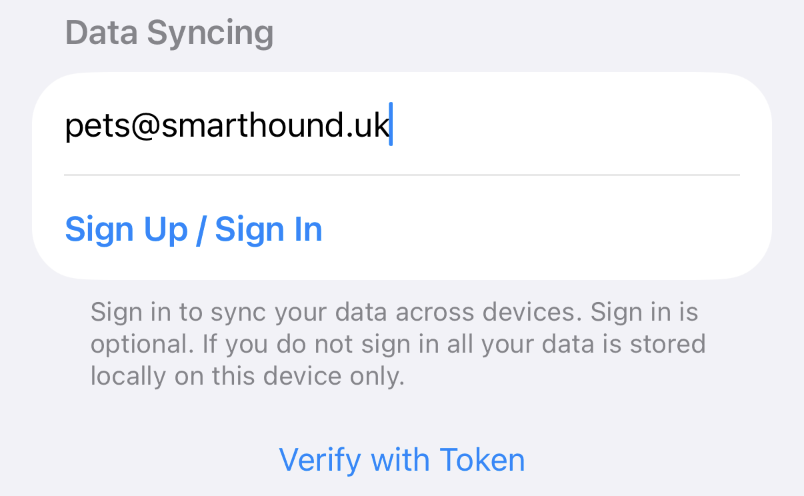
Enter your email and tap Sign Up / Sign In. A message bar appears at the bottom of the screen to confirm your action: "Requestion Login ...". After a few seconds it changes to "Login Email Sent". Please check your email at this point.
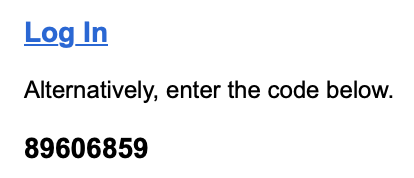
If you are reading the confirmation email on the same device where the app is installed then all you have to do is click on the "Log In" link. The app will handle the login confirmation for you.
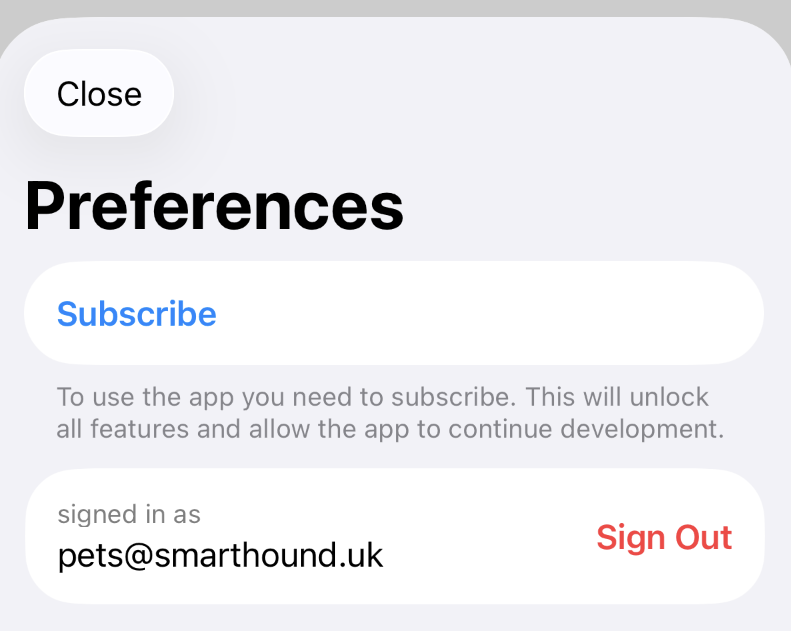
Once verified, your account status appears in the Preferences screen and syncing begins. You can sign out at any time to return to fully local‑only storage. Your data remains yours either way — the account simply adds convenience when you want it.
Log in with Token
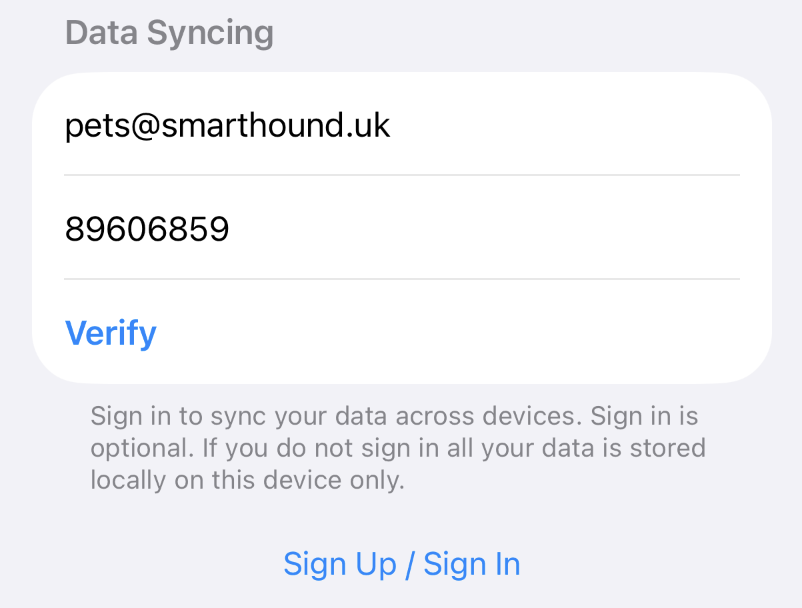
You can also log in with a token. To do so, tap on the Verify with Token
 link. The app shows an extra box where you can fill in the token that you received in the confirmation email.